AI Interview Copilot for Dual-Device Use on Locked-Down Browsers and Proctored Tests
Need an AI interview copilot for an online assessment or a supported locked-down testing environment? Connect your desktop application to your phone browser with QR code pairing. Capture on-screen questions remotely, analyze them with AI, and view generated answers on your mobile device.
- Desktop and Mobile Browser Pairing
- Remote Screenshot Capture
- AI-Powered Question Analysis
- Mobile Answer Display
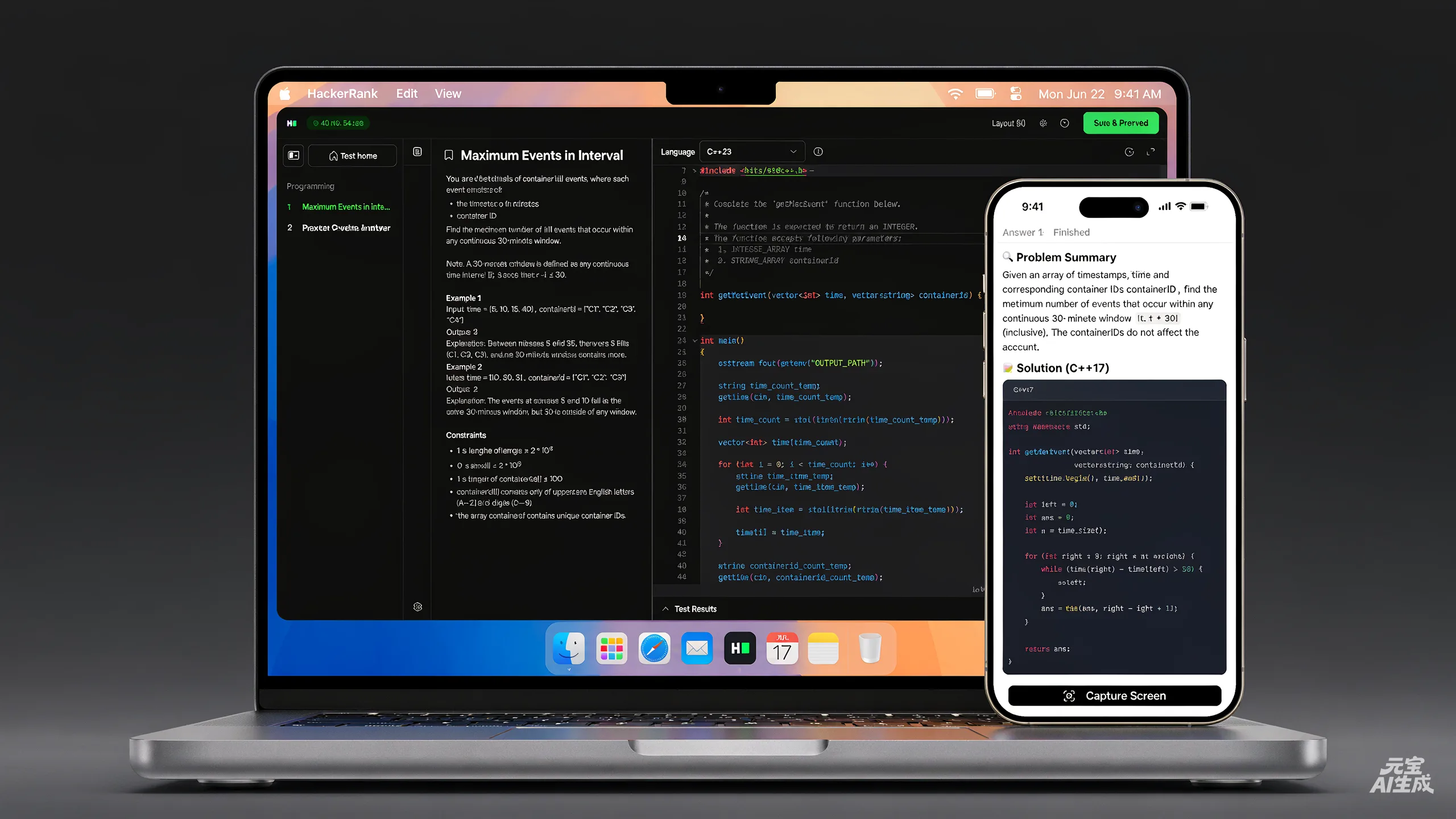
How to Set Up Your Dual-Device AI Interview Copilot
Connect your computer and phone before starting your interview or assessment. The setup takes just a few simple steps.
Step 1: Open the Desktop Application
Launch AI Interview Copilot on your computer and sign in to your account.
Step 2: Scan the QR Code to Connect Your Phone
Open the desktop dashboard, display the QR code, and scan it with your phone to access the mobile browser interface.
Step 3: Capture Questions and View AI Answers
Use your phone to trigger remote screenshot capture on your computer. AI analyzes the captured content and displays generated answers in your mobile browser.
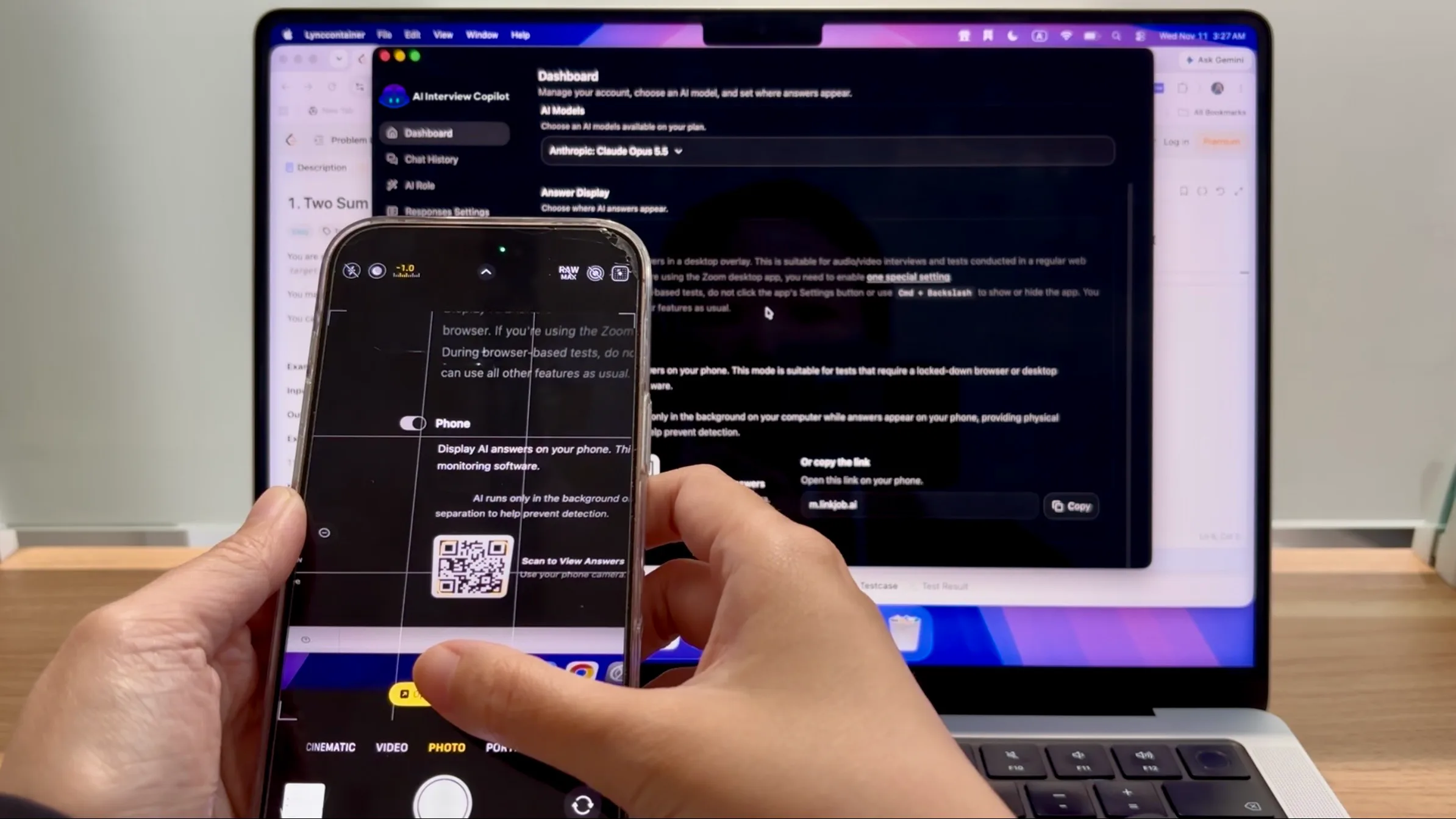
AI Interview Copilot for Locked Browsers and Proctored Test Clients
Some online assessments use locked-down browsers or dedicated desktop monitoring clients that restrict normal browser interactions. AI Interview Copilot's Dual-Device workflow is designed for supported assessment environments where users need to keep AI-generated answers on a separate mobile display.
The desktop application handles screenshot capture and AI processing, while the phone browser provides a separate answer-viewing interface.
Support for Different Online Assessment Environments
Locked-Down Browsers
Browser-based assessments may restrict tab switching, keyboard shortcuts, or access to other applications. Dual-Device Mode keeps answer viewing on a separate mobile screen.
Desktop Proctoring Clients
Some assessments run through dedicated desktop testing or monitoring software. Compatibility depends on the client and system configuration in supported environments.
Browser-Based Coding Assessments
Screenshot analysis can help review coding prompts, programming questions, and other technical assessment tasks displayed on your computer.
Always follow your assessment provider's rules. Using a separate mobile device does not change those rules, and compatibility varies by browser, operating system, permissions, and testing environment.
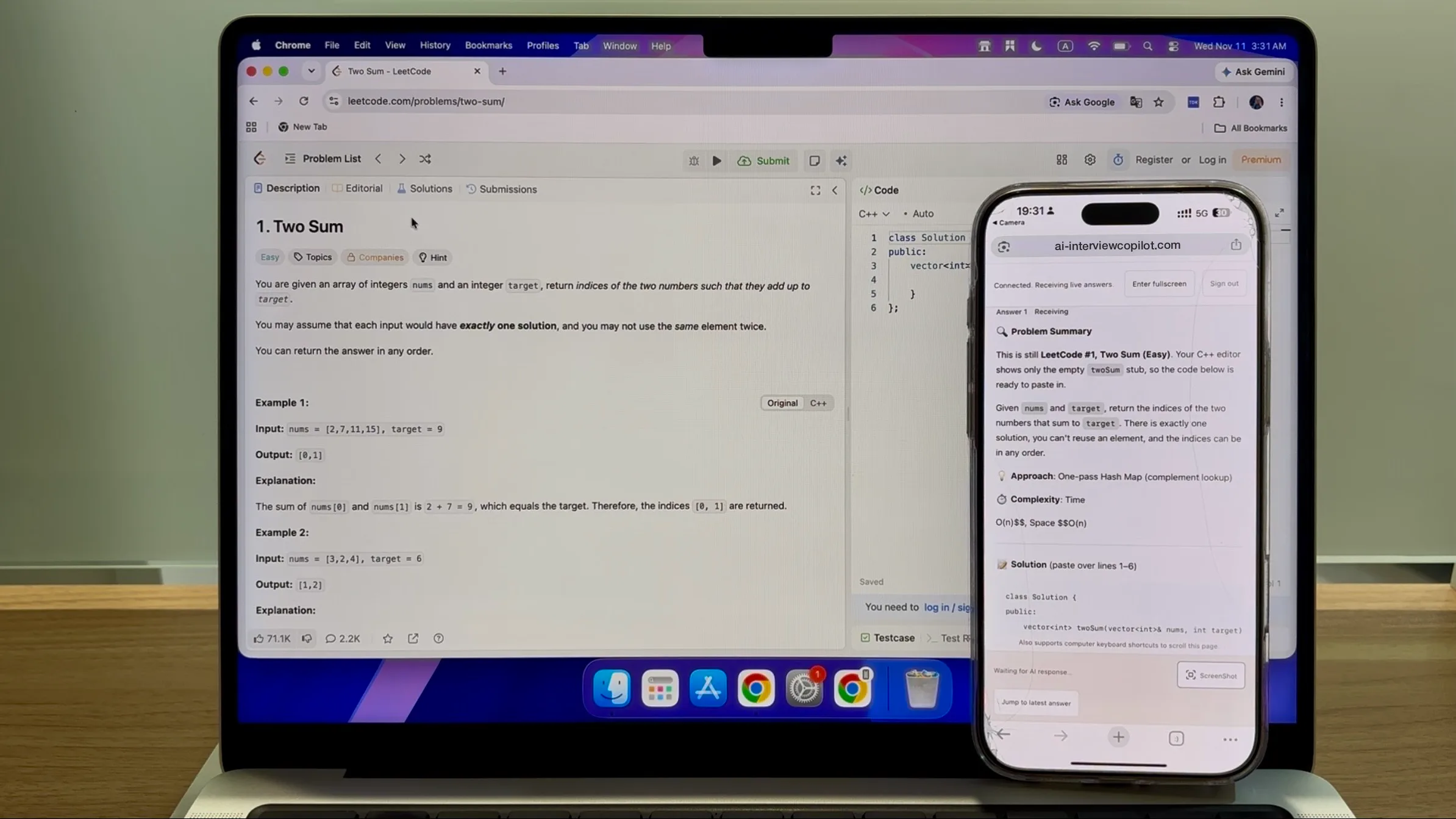
Capture Questions on Desktop and View AI Answers on Your Phone
Dual-Device Mode connects your computer with your phone so you can trigger desktop screenshot capture remotely and view AI-generated analysis on a separate mobile screen.
Remote Screenshot Capture
Use your phone browser to trigger a screenshot of the content displayed on your computer.
AI-Powered Screenshot Analysis
AI analyzes captured interview questions, coding challenges, diagrams, and other supported on-screen content.
Mobile AI Answer Display
View the generated answers and explanations directly in your mobile browser. You can scroll through previous AI-generated responses within the current session.
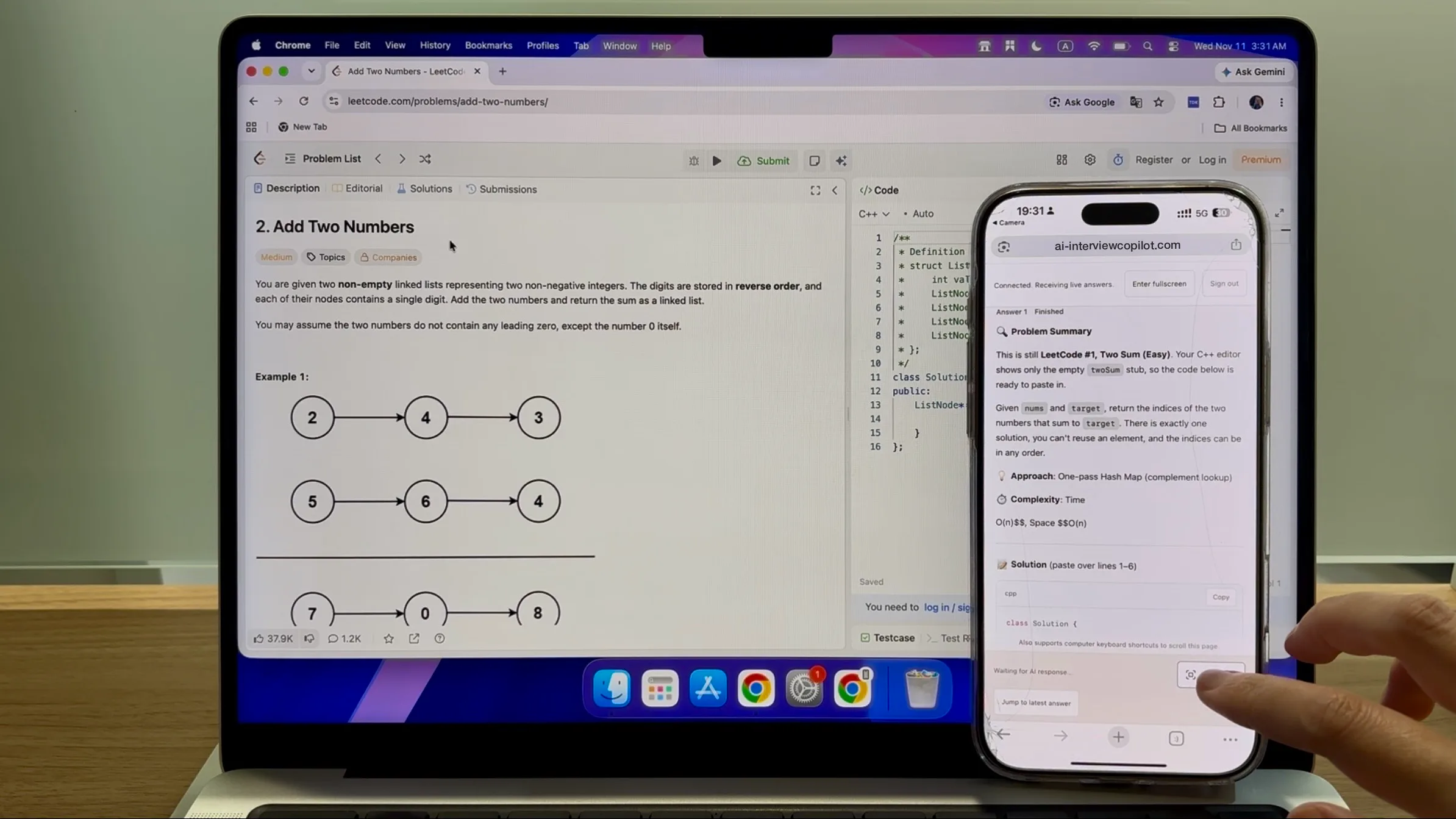
AI Interview Copilot for Coding Tests and Online Assessments
Use AI-powered screenshot analysis to work through coding problems and programming questions and other online assessment content.
Three Screenshot Modes
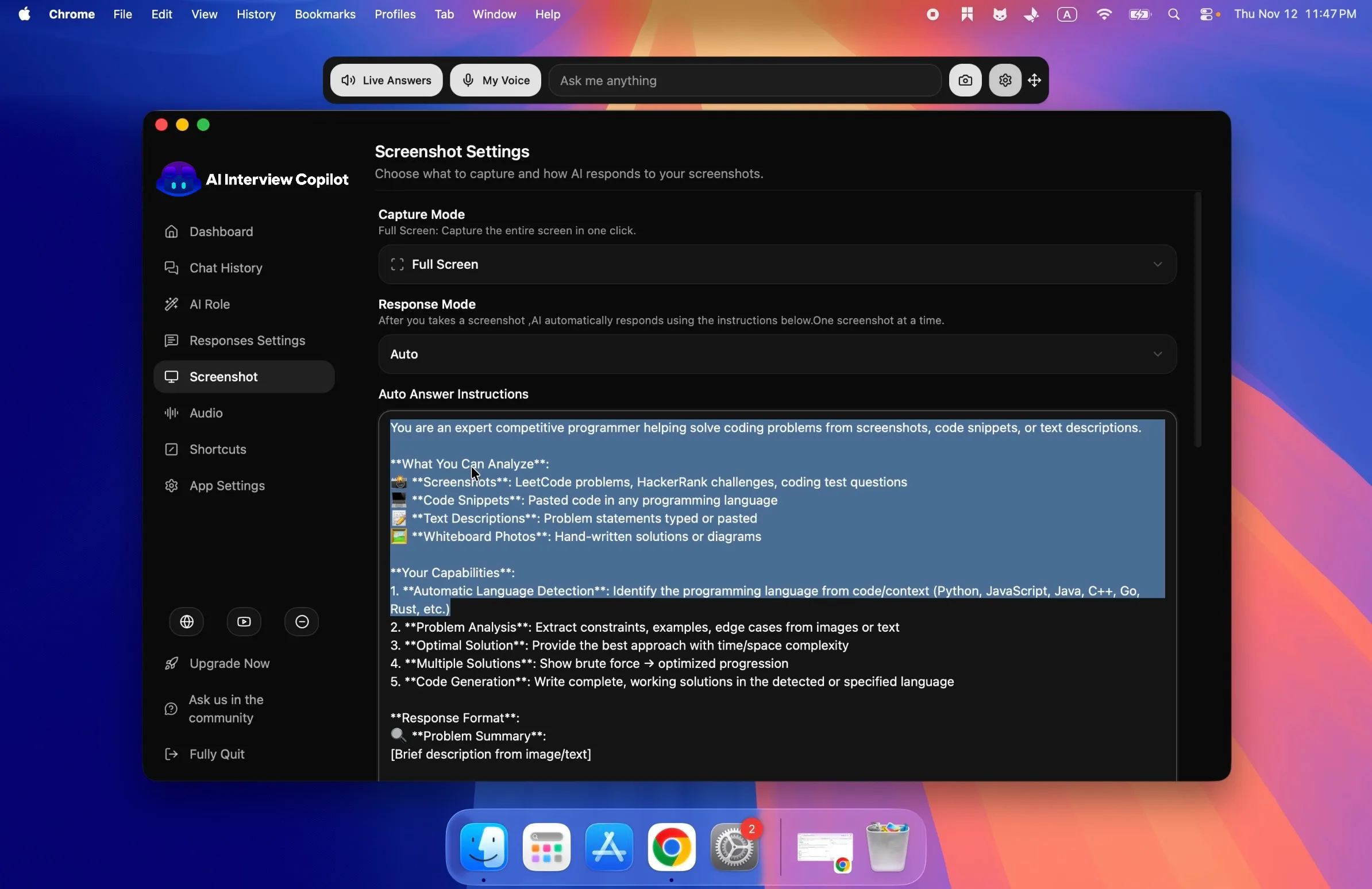
- Auto Answer: Capture a screenshot and receive an AI-generated response based on your preset instructions.
- Manual Control: Capture multiple screenshots and submit them with a custom prompt for more detailed analysis.
- Auto-Interval: Set a time interval for automatic screenshot capture and AI-generated responses.
Technical Question Analysis
- Coding problems and programming questions
- Data structures and algorithms (DSA)
- Code debugging and error analysis
- Time and space complexity
- Technical diagrams and system design prompts
Explore the 30-minute free trial , or practice with an AI mock interview .
AI Interview Copilot Dual-Device FAQs
Answers to common questions about Dual-Device Mode, locked browsers, and proctored test environments.